
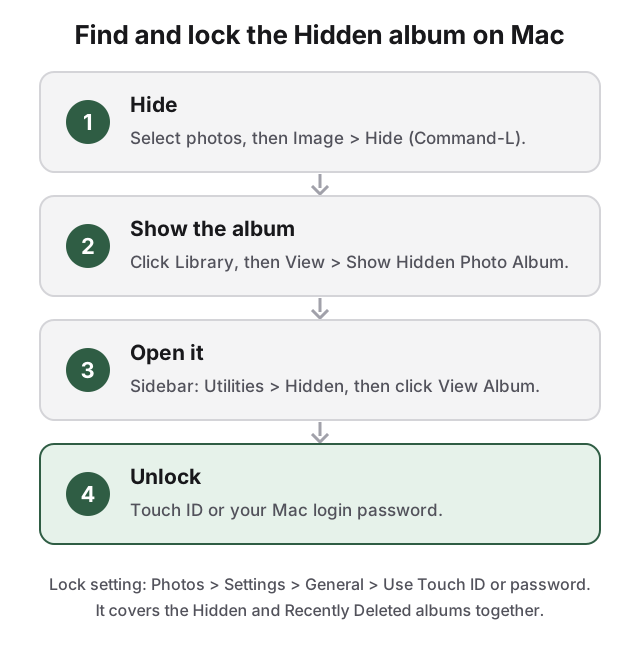
To hide photos on Mac, open the Photos app, select the photos, and choose Image > Hide (or press Command-L). They move to the Hidden album, which is itself hidden from the sidebar and locked with Touch ID or your Mac login password.
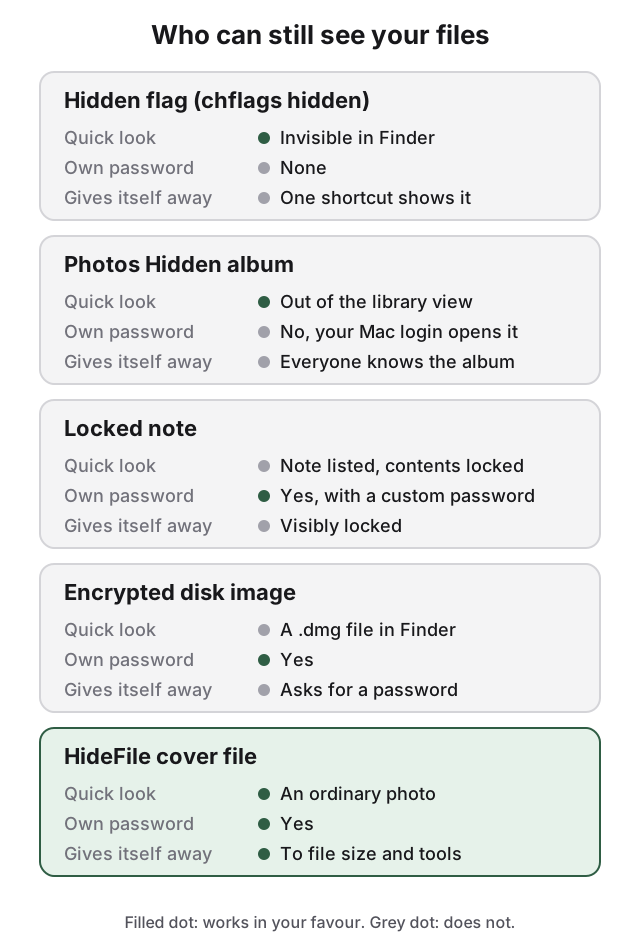
That lock is your Mac login password, not a separate one, so who else uses or can open your Mac decides which method works. If nobody else knows your login password, the Hidden album is enough. If someone does, or uses your Mac signed in as you, the photos need something with its own password.
How to hide photos on Mac with the Photos app
- Open Photos and click Library in the sidebar.
- Select the photos or videos you want to hide.
- Choose Image > Hide, or Control-click and choose Hide Photo, or press Command-L.
- Confirm. The photos disappear from the Library and from albums. They are not deleted.
Apple's wording is that hidden photos "disappear from view but are not deleted." That is the whole mechanism: hiding changes where a photo is shown. It does not move the photo out of your Photos library or give it a separate password.
The Hidden album on Mac is off by default
This comes up often in Apple's forums. On Mac the album is not listed until you turn it on:
- Click Library in the sidebar first. The menu item is easiest to find from there.
- Choose View > Show Hidden Photo Album.
- Look in the sidebar under Utilities and click Hidden. If Utilities is collapsed, hover over it and click the arrow to expand it.
- Click View Album and unlock with Touch ID or your login password.
To take the album out of the sidebar again, choose View > Hide Hidden Photo Album. The photos stay hidden either way; this only controls whether the album is listed.
How to unhide photos on Mac
Open the Hidden album as above, select the photos, then Control-click and choose Unhide, or choose Image > Unhide. They return to the Library and to any albums they were in.
The lock is your Mac login password, not a separate one
Since macOS Ventura the Hidden album is locked by default. The setting is in Photos > Settings > General, under Privacy: Use Touch ID or password (on a Mac without Touch ID it reads Use Password). With it on, the Hidden and Recently Deleted albums both ask for authentication. The two are covered by the same switch, so you cannot lock one and not the other, and a regular album cannot be locked at all.
There is no separate album password. Anyone who knows your login password can open the Hidden album. Your user account also needs a password for the lock to be available; if your account has none, Photos cannot require one.
iCloud Photos carries hidden photos to your other devices
If you use iCloud Photos, Apple states that photos you hide on one device are hidden on your other devices too. That cuts both ways. A photo you hide on your Mac also sits in the Hidden album on your iPhone, where your phone's passcode or Face ID opens it. If someone knows your iPhone passcode, hiding on the Mac does not keep photos from them. The iPhone side is covered in how to hide photos on iPhone.
The Hidden album keeps photos out of a scroll, not out of reach
The album is also not a secret: every Mac user can find View > Show Hidden Photo Album, so anyone looking for hidden photos knows where to look. It also only holds what Photos holds, so PDFs, documents and other files cannot go in it.
A locked note or a disk image gives photos their own password
The Notes app can lock a note with your login password or a custom password you set in Notes > Settings. Images are allowed in locked notes. Videos, audio, PDFs and other documents are not, and neither are shared notes or notes with tags. A custom password is separate from your login, and Apple cannot recover it if you forget it. The note stays in your notes list, visibly locked: fine for a handful of photos, and obvious to anyone scrolling Notes.
For more than a handful, export the originals from Photos, put them in a folder, and turn that folder into a password-protected disk image with Disk Utility. The image has its own password and holds any file type. The steps, and the trade-offs, are in how to hide files on Mac. Remember to delete the originals from Photos and from Recently Deleted afterwards.
How HideFile can help
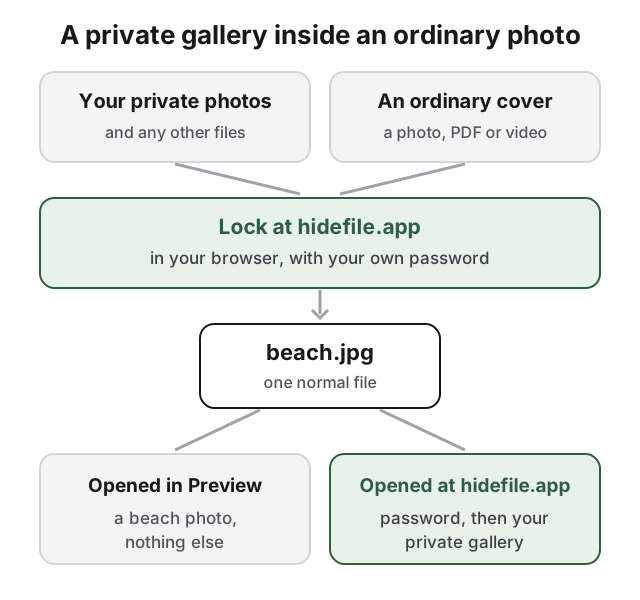
We built HideFile for photos that need their own password without announcing that anything is locked. It puts private photos and files inside an ordinary photo, video or PDF, called a cover file. Open the cover in Preview or QuickTime and you see a normal picture or video. Open it at hidefile.app with your password and you see your private gallery.
HideFile runs in your browser. There is nothing to install.
- Export the private photos from Photos to a folder (File > Export).
- Open hidefile.app in your browser.
- Choose a cover: any ordinary photo, video or PDF.
- Add the private photos and files, and set a password.
- Save the locked cover file to a folder in Finder.
- Delete the originals from the folder, from Photos and from Recently Deleted.
To open it later, go back to hidefile.app, pick the cover file and enter the password. The encryption runs in the browser; HideFile does not receive your files. The password is separate from your Mac login, your iPhone passcode and your Apple Account. There is no Hidden album, no lock icon and no .dmg file, and the cover can hold photos, videos, PDFs, documents or whole folders. It is a normal file: copy it, back it up, put it on a USB drive, move it to a new Mac.
Keep the cover as a file in a folder rather than importing it into Photos. Apps that re-save or compress images, such as many messaging apps and social networks, can strip the hidden part. Pick a cover that fits the size of what is inside: a 3 MB beach photo that is suddenly 2 GB invites a second look, a long video cover does not.
HideFile stops casual snooping, not forensic tools. A purpose-built tool can see that data was added to the cover file; it cannot read the contents without the password, but it can tell they are there. Can hidden photos be detected covers what an examiner finds. There is no password recovery: forget the password and the files inside are gone, and nobody, including us, can open them.
It also does not protect an open session; while a cover is unlocked on screen, anyone at your Mac sees what you see. If your concern is a trained examiner, a border search or legal pressure, HideFile is the wrong tool, and so is the Hidden album. For how hiding data inside images works in general, see steganography tools compared.
Sources
- Apple Support: Hide photos with the Hidden album
- Apple Support: Hide photos from view in Photos on Mac
- Apple Support: Lock your notes on Mac
- Apple Support: Create a disk image using Disk Utility on Mac