
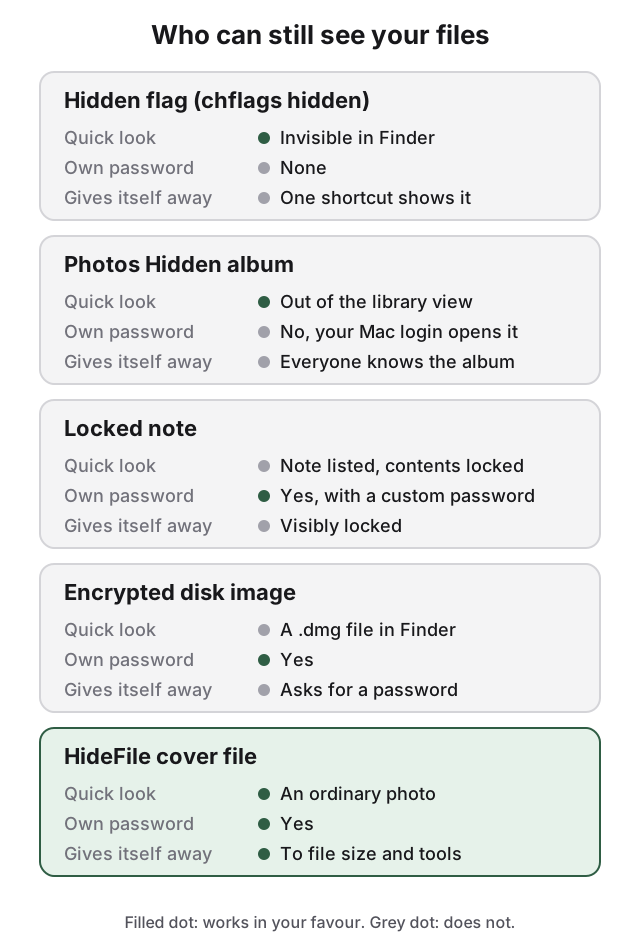
macOS has four built-in ways to keep files private: the hidden flag, which takes a file out of Finder; an encrypted disk image, which is how you password protect a folder on Mac; a locked note; and FileVault, which encrypts the whole disk. Each stops a different person, so the right one depends on who else uses or can open your Mac.
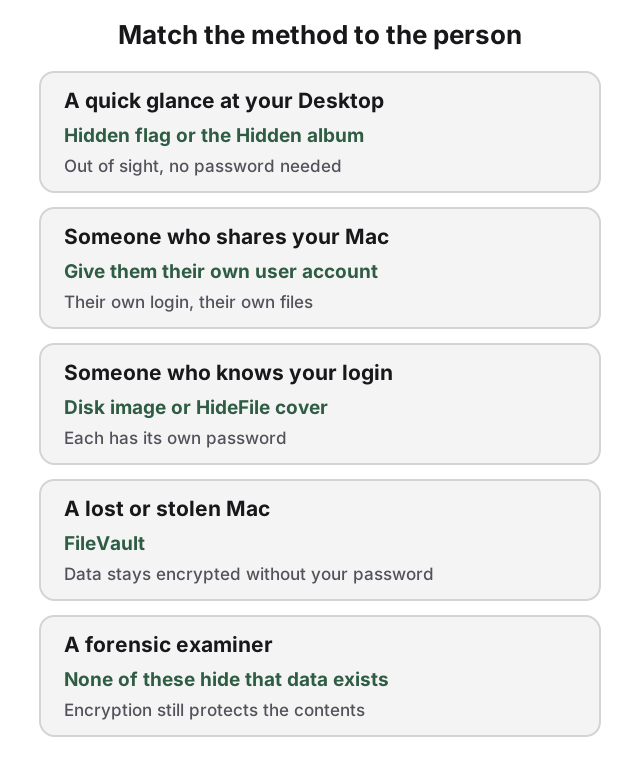
The hidden flag keeps a file out of a quick glance, with no password. An encrypted disk image holds up against someone who knows your login password, but makes plain that something is locked. A locked note suits a few photos or written notes. FileVault protects a lost or stolen Mac and does nothing against someone using it while you are signed in.
How to hide files on Mac with chflags hidden
Every file on a Mac can carry a "hidden" flag. Finder does not show flagged files or folders, and the flag works on folders exactly as on files. You set it in Terminal:
- Open Terminal (in Applications > Utilities).
- Type
chflags hiddenwith a space at the end, then the path to the file or folder. - Press Return. The item disappears from Finder.
chflags hidden ~/Documents/PrivateTo make it visible again:
chflags nohidden ~/Documents/PrivateBoth commands are documented in man chflags and behave as described on macOS 26.5. You can confirm the flag with ls -lO, which prints hidden next to flagged items.
How to see hidden files on Mac
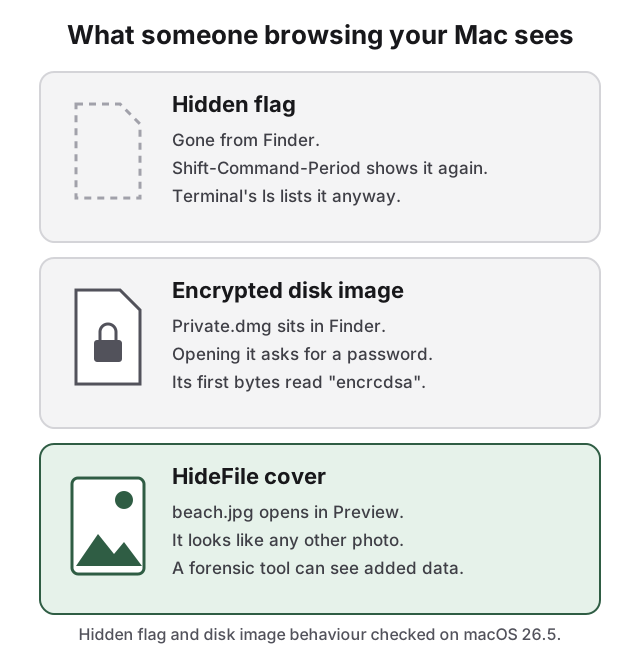
In any Finder window, press Shift-Command-Period to show hidden files, greyed out. Press it again to hide them. In Terminal, a plain ls lists a flagged file as if nothing were set; the flag only affects Finder and other apps that respect it.
That is the catch. The flag does not encrypt anything and has no password. Anyone who knows the shortcut, or opens Terminal, sees the file and can open it.
How to password protect a folder on Mac
macOS has no "lock this folder" button. The built-in way, with no extra software, is an encrypted disk image: a single .dmg file that holds a folder's contents and asks for a password before it opens. Disk Utility makes one in two ways.
Turn an existing folder into a password-protected disk image
- Open Disk Utility (in Applications > Utilities).
- Choose File > New Image > Image from Folder.
- Select the folder and click Open.
- Enter a name for the disk image and choose where to save it.
- Click the Encryption pop-up menu and choose an encryption option (128-bit or 256-bit AES), then set the password.
- Click the Image Format pop-up menu and choose an option, such as Read-only Compressed.
- Click Save, then Done.
Two things people miss. First, a read-only or read-only compressed image is a sealed snapshot: you cannot add files to it later. For a folder you keep adding to, use a blank image, below. Second, the original folder is still there, unprotected. Check the image opens with your password, then delete the original folder and empty the Trash.
Make a password-protected folder you can keep adding to
For a locked folder you use every week, create an empty encrypted image instead:
- In Disk Utility, choose File > New Image > Blank Image.
- Enter a file name, a volume name and a size large enough for what you plan to store.
- Set Format to APFS.
- Choose an option from the Encryption pop-up menu, enter the password twice, then click Choose.
- Set Image Format to a read/write format, such as Sparse Bundle Image.
- Click Save, then Done.
Double-click the .dmg, enter the password, and it appears as a drive in Finder. Drag files in. Eject it when you are done and it locks again.
Password protect a folder from Terminal
The same thing in one command, using hdiutil. It asks for the password when it runs:
hdiutil create -encryption AES-256 -srcfolder ~/Documents/Private -format UDZO ~/Documents/Private.dmgThis makes a compressed, read-only, AES-256 image of the folder. Tested on macOS 26.5; hdiutil isencrypted on the result reports encrypted: YES.
Apple's warning applies to every method on this page with its own password: if you forget the disk image password, you cannot open the image or the files in it.
A locked note holds a few photos, not your files
Notes can lock a note with your login password or a custom password, set in Notes > Settings. To lock a note, click the More button at the top right of the note, choose Lock Note, and enter the password.
Locked notes can hold text, tables, images, drawings and scans. They cannot hold videos, audio, PDFs or other documents, and shared notes or notes with tags cannot be locked. If you choose a custom password and forget it, Apple cannot help you get the notes back.
FileVault protects a switched-off Mac, not a signed-in one
FileVault encrypts everything on your Mac's disk so nobody can read it without your login password. On a Mac with Apple silicon or a T2 chip the data is already encrypted; turning on FileVault adds the requirement that your login password unlocks it. Turn it on in System Settings > Privacy & Security > FileVault.
FileVault protects a Mac that is lost, stolen or switched off. It does not hide anything from someone using your Mac while you are signed in, or from anyone who knows your login password. Once you log in, the disk stays unlocked, even while the screen is locked, and every file is readable as normal. Keep it on, and treat it as a different job from hiding files.
A shared Mac is better served by separate user accounts
If someone else uses your Mac, the cleanest fix is for them to sign in as themselves. Add an account in System Settings > Users & Groups > Add User, or let occasional users sign in as a guest. Apple notes that guests cannot access other users' files or settings. This does not help against someone who knows your password.
Every built-in method gives itself away
Each method leaves a trace. A hidden file reappears with one shortcut, and Terminal lists it anyway. A locked note shows as locked in the notes list, and cannot hold most files. An encrypted disk image is the strongest and the most obvious: it is a .dmg file, it opens to a password prompt, and its first bytes read encrcdsa, the signature of an encrypted Apple disk image. A curious person cannot open it, but they know you are keeping something locked.
How HideFile can help
We built HideFile for files that need their own password without looking locked. It keeps private files inside an ordinary photo, video or PDF, called a cover file. Double-click the cover and it opens in Preview or QuickTime as exactly what it looks like. Open it at hidefile.app with your password and you see your private files.
HideFile runs in your browser. There is nothing to install.
- Open hidefile.app in your browser.
- Choose a cover: any ordinary photo, video or PDF.
- Add the private files or whole folders, and set a password.
- Save the locked cover file to a folder in Finder.
- Delete the originals and empty the Trash.
The encryption runs in the browser; HideFile does not receive your files. The password is separate from your login, and the cover is a normal file you can copy, back up and move to another Mac. Pick a cover that fits what is inside: a 2 GB "photo" invites a second look, a long video does not. Keep it as a file; apps that re-compress images, such as many messaging apps, can strip the hidden part.
HideFile stops casual snooping, not forensic tools. A purpose-built tool can see that data was added to the cover file; it cannot read the contents without the password, but it can tell they are there, as can hidden photos be detected explains. There is no password recovery: forget the password and the files are gone, and nobody, including us, can open them. It does not protect an open session either; while a cover is unlocked, anyone at your Mac sees what you see. If your concern is a trained examiner, a border search or legal pressure, HideFile is the wrong tool.
For photos specifically, see how to hide photos on Mac. For how this compares with classic tools that hide data inside images, see steganography tools compared.
Sources
- Apple Support: Create a disk image using Disk Utility on Mac
- Apple Support: Protect data on your Mac with FileVault
- Apple Support: Lock your notes on Mac
- Apple Support: Add a user or group on Mac
- macOS manual pages:
man chflags,man hdiutil