
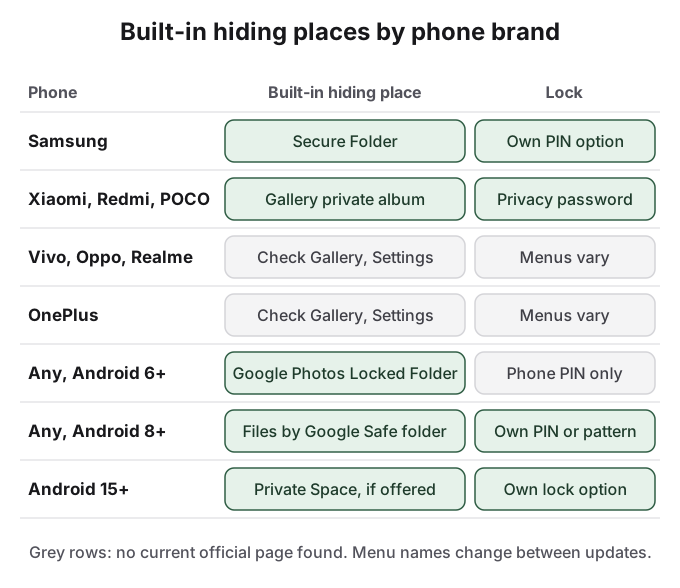
Every Android phone can hide photos from the gallery with Google Photos Locked Folder, whatever the brand. Samsung adds Secure Folder, and Xiaomi, Redmi and POCO phones have a private album inside the Gallery app. Vivo, Oppo, Realme and OnePlus phones have their own private albums on many models, but the menus change between updates and we could not find a current official page for any of them.
The menu is the easy part. The parts that cause trouble are who can open the hidden photos, and what happens to them when the phone is exchanged, repaired or reset. This guide covers each brand with the steps we could verify from Google, Samsung and Xiaomi support pages on October 14, 2026, and says plainly where we could not.
How to hide photos in gallery on Android with Locked Folder
Locked Folder is inside Google Photos, so it works the same on Samsung, Xiaomi, Vivo, Oppo, Realme and most other phones with Android 6 or later.
- Open Google Photos and tap Collections.
- Tap Locked, then Set up Locked Folder, and confirm with your screen lock.
- Open a photo, tap Add to, then Move to Locked Folder, then Move.
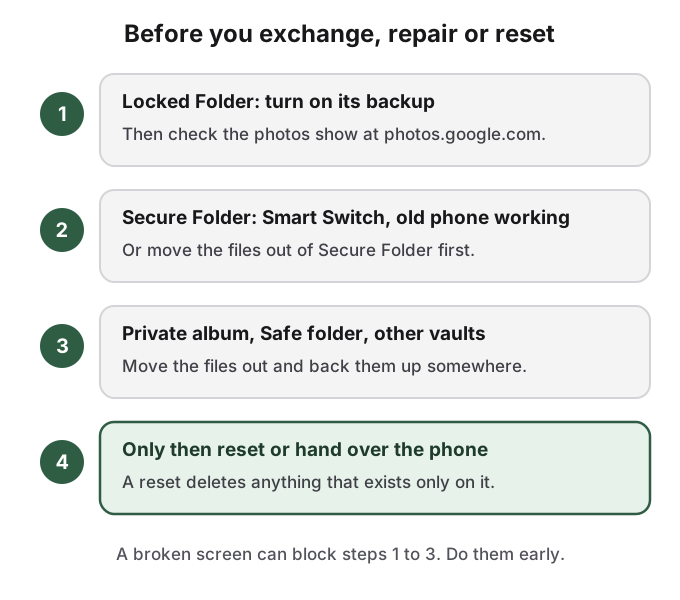
Hidden photos leave the Photos grid, search, albums and memories, and other apps on the phone cannot read them. Two things decide whether it is enough. First, Google says the Locked Folder password "is the same as your device screen lock". In a family where a spouse, parent or sibling knows your phone PIN, they can open it. Second, its backup is off by default. Turn it on under your profile picture, Photos settings, Backup, Back up Locked Folder. Without it, Google warns that uninstalling Photos, clearing its data, a factory reset or a lost phone deletes the photos, and they do not move to a new phone. The Google Photos guide covers Locked Folder in full.
Samsung: use Secure Folder, not the Gallery hide option
Samsung's Gallery app can hide albums from the album view, according to Samsung owners on Reddit, but it adds no lock, and one owner who tried it reported: "I did this but the photos still show up in the media picker", the screen WhatsApp and other apps use to attach a photo. Samsung's own help pages point to Secure Folder instead.
Secure Folder is at Settings > Security and privacy > More security settings > Secure Folder on current phones (older models: Settings > Biometrics and security > Secure Folder). It needs a Samsung account, and you can give it its own PIN, separate from the phone's. Inside it, tap Add files, choose the photos and pick Move. To hide its icon, open its menu, then Settings, and switch off Show icon on Apps screen.
Plan for the day you change phones. Samsung's US support page now says, "Data backup is no longer available for Secure Folder", and that on phones with Android 16 and One UI 8 or later, restoring an old backup is not available either. Samsung's answer is Smart Switch, which needs the old phone working. One owner wrote, "when my screen broke and got it repaired I lost all my secure folder." See the Secure Folder guide for transfer steps.
Xiaomi, Redmi and POCO: the Gallery private album
Xiaomi's Gallery app, used on Redmi and POCO phones as well, has a private album. Xiaomi's support page for the 14T Pro gives these steps:
- Open Gallery, select the photo, tap the three dots, then Add to album.
- Choose Private album and tap OK.
- To view it, open Albums in Gallery, swipe down on the album screen and enter the password.
The password is set under Settings > Fingerprints, face data, and screen lock > Privacy protection password, so it can differ from your screen lock. Older MIUI phones and newer HyperOS phones may label things slightly differently.
Two cautions. Xiaomi's support pages say you need a Xiaomi account the first time, and "Without this account, we will not be able to hide any element from the gallery." And Xiaomi's pages disagree on whether private album content syncs to Xiaomi Cloud, so do not count on it being backed up. Move private photos out before a reset or exchange.
Vivo, Oppo, Realme and OnePlus: find it, then test it
These brands ship their own Gallery apps, and many models have a private, safe or hidden album. We could not find a current official support page from any of them, and community instructions describe menus that change between software versions, so we are not printing steps we cannot check. Look in the Gallery's three-dot menu and in Settings under privacy or security.
Whatever you find, test it before trusting it with anything important. Move one unimportant photo in and check three things: whether it asks for a password that is different from your screen lock, whether the photo still appears when you attach a picture in WhatsApp, and what the phone says happens to it on reset or when you uninstall updates. A Reddit user in r/techsupport titled their thread "Deleted cache on my Gallery now all my Hidden Album pictures and videos are corrupted", a reminder that a gallery's hidden album can depend on data that a routine cleanup deletes.
Some OnePlus and Oppo owners also report "Trouble moving to locked folder. try again later" in Google Photos. Users found it works at photos.google.com in Chrome instead.
Dialer and calculator tricks are vault apps in disguise
YouTube is full of ways to hide photos, many in Hindi, Kannada and other Indian languages. Two kinds have huge view counts. "Hide photos in the dialer" or calculator videos (one has more than 366,000 views) install a vault app that disguises itself as a dialer or calculator. That is a third-party app holding your photos in its own storage, and when the app breaks or does not move to a new phone, the photos go with it.
The "without any app" videos usually rename photo files or add a .nomedia file so the gallery skips them. That hides photos from the gallery and from nobody who opens a file manager, and it does nothing to copies Google Photos already uploaded. How to hide photos without an app on Android explains exactly what those tricks hide.
Exchange, repair and reset are where hidden photos get lost
Most stories about hidden photos going wrong are about losing them, not about someone finding them. A Reddit user in r/googlephotos reset an old phone after switching, and learned the Locked Folder had never been backed up: "With the factory reset it got permanently deleted, I'm afraid." Every built-in hiding place keeps photos on that one phone unless you move them first, so do it before an exchange offer, a service-centre visit or a reset.
How HideFile can help
The built-in options have the same gaps on every brand: the lock is often the phone PIN, the hiding place is tied to one phone, and the private album or folder can be noticed by anyone who knows where to look.
HideFile puts private photos and files inside an ordinary photo, video or PDF, called a cover file. In Gallery the cover is just a picture. At hidefile.app, with your password, it opens to show the private files. The password is separate from your phone's PIN. Because the cover is a normal file, it moves to a new phone like any other file, which matters when phones change hands often. HideFile runs in Chrome on Android; there is no Play Store app and nothing to install.
- Open hidefile.app in Chrome and tap Lock new files.
- Choose a cover photo, set a password and add the private photos.
- Tap Save; Chrome saves the cover, usually to Downloads.
- Delete the originals from Gallery, from Google Photos and from the trash.
Files are encrypted in the browser and not uploaded to a HideFile server. If you send a cover on WhatsApp, send it as a document, not as a photo, because compression strips the hidden part. HideFile stops casual snooping, not forensic tools: a purpose-built tool can tell data was added, though it cannot read it without the password. There is no password recovery. For legal pressure or a trained examiner, it is the wrong tool. For every method in more depth, see how to hide photos on Android and Android Private Space.
Sources
- Google Photos Help: Hide photos and videos with Locked Folder (checked October 14, 2026)
- Samsung US: Secure Folder troubleshooting and backup
- Samsung Latin America: What is Secure Folder and how to use it
- Xiaomi: Private album on Xiaomi 14T Pro
- Xiaomi: Hiding items in Gallery
- Files by Google Help: Use Safe folder
- Reddit r/samsung: How do you hide your pics in your gallery?, Secure Folder lost after repair
- Reddit r/googlephotos: Locked Folder lost after reset, move to Locked Folder fails
- Reddit r/techsupport: Hidden Album corrupted after clearing Gallery cache