
To hide photos on Android, open Google Photos, tap Collections, then Locked, and set up Locked Folder. Move a photo in by opening it and tapping Add to, then Move to Locked Folder. It works on most phones with Android 6 or later, whatever the brand; Google excludes some managed work devices and account types.
That answer is short and incomplete. Locked Folder opens with your phone's screen lock, so it does nothing against a partner, parent or child who knows your PIN. Its backup is off by default, so a factory reset, a cleared app or a lost phone deletes everything in it. Every other built-in hiding place on Android has a version of the same two problems: who can open it, and what happens to it when the phone changes. This guide goes through each method by phone family, with the exact menus from Google's and Samsung's help pages as checked on October 14, 2026, and what each one leaves exposed.
How to hide photos on Android with Google Photos Locked Folder
Locked Folder is the one method every Android phone shares, because it lives in Google Photos rather than in the phone maker's software. Google says it needs Android 6 or later. Items in it disappear from the Photos grid, from memories, search and albums, and from other apps on the phone that have permission to read your photos.
- Open Google Photos and tap Collections.
- Tap Locked, then Set up Locked Folder, and confirm with your screen lock.
- To move a photo in, open it, tap Add to, then Move to Locked Folder, then Move.
On a Pixel 4 or later, the camera can save straight into it: press and hold the preview of the last photo, then choose Locked Folder.
Now turn on the backup, because the default is the trap. Tap your profile picture, open Photos settings, then Backup, and switch on Back up Locked Folder. Without it, Google's help page is blunt: items "will only be stored on that device", and you lose them if you uninstall Photos, clear its app data, factory reset, or lose or damage the phone. They are not carried over by a cable or cloud transfer to a new phone either. Worse, moving a photo into an un-backed-up Locked Folder deletes the copy Google Photos had already backed up.
The backup option is newer than most of the advice about it. Archived copies of Google's help page show no backup section on August 29, 2023, and a "Back up your Locked Folder" section the next day. Articles and Reddit answers written before then say Locked Folder cannot be backed up; that was true when written and is wrong now. The Google Photos guide covers the change in detail.
Many people never find the switch. In a September 2026 thread from someone whose phone went into the ocean, the answers were a lesson in a toggle nobody remembered setting: "Locked Folder stays on that phone only" without backup. Another owner moved a year of photos in, then "I then realized locked photos don't get backed up", tried to move them back, and the screen locked mid-move; the photos ended up in neither place, only in a temporary folder visible in Files. Moving large batches in and out is itself a risky operation. Do it in small groups with the phone plugged in and the screen awake.
Locked Folder has other limits. You cannot edit, share, add to an album or send to Trash anything inside it. Backed-up items count against your Google storage quota.
Locked Folder opens for anyone who knows your phone PIN
Google's help page states it directly: "Your Locked Folder password is the same as your device screen lock. You can't use a different Locked Folder password." Fingerprint and face unlock do not change that, because the PIN is always the fallback. A Reddit user in r/GooglePixel summed it up: "it's the same password information (and biometrics) as the phone's."
That is fine if nobody else knows your PIN, and useless against the person who watched you type it.
Locked Folder is also not as quiet as its name suggests. Google says items are "protected by Google Photos' standard encryption practices", with no claim of end-to-end encryption, and once backup is on they can be opened from any device signed in to your Google Account, including photos.google.com on a shared laptop.
Archive tidies the grid and hides almost nothing
Google Photos also has Archive, and the two are often confused. Archive takes a photo out of the main Photos grid and nothing more. Google's own page says archived photos "will still be in any albums that they were added to, search results, and folders on your device", and they still count toward storage. It has no lock.
Samsung: the Gallery hide option is cosmetic, Secure Folder is the lock
On Samsung phones the common first answer, upvoted in r/samsung, is to hide albums in the Gallery app. Samsung's help pages we checked do not describe a hidden photo album at all; they point to Secure Folder. Owners who tried hiding albums report the obvious gap. One wrote: "I did this but the photos still show up in the media picker", the screen other apps use to attach a photo. A hidden album has no lock, and anyone holding the unlocked phone can unhide it.
Secure Folder is a separate, encrypted space with its own apps and files. On current phones it is at Settings > Security and privacy > More security settings > Secure Folder; on phones from around 2022 the path was Settings > Biometrics and security > Secure Folder. Setup needs a Samsung account. Its big advantage over Locked Folder is that you choose its lock method, so it can have a PIN your partner does not know. Samsung's 2022 help page also describes resetting a forgotten Secure Folder PIN with your Samsung account password, so on phones that still offer it the account password matters as much as the PIN.
- Open Secure Folder and tap Add files.
- Pick the photos, then choose Move (which deletes the originals from normal storage) or Copy.
- To hide the icon, open Secure Folder's menu, then Settings, and switch off Show icon on Apps screen.
Hiding the icon does not hide the folder from everyone. A Reddit user in r/GooglePixel, comparing it with Private Space, pointed out that "in storage stats you tranparently get "Secure folder"". The storage screen names it even if you rename the icon.
The weak point is moving to a new phone. Samsung's US support page now says: "Data backup is no longer available for Secure Folder." It also says restoring an old backup "is not available in the Secure Folder for devices running Android 16 with One UI 8 or higher", and that the way to move Secure Folder data is Smart Switch. Older articles and Samsung's own 2022 regional pages still describe backing up to Samsung Cloud; that no longer applies to current phones.
Owners describe Smart Switch moving it for some and not others, and one put the result plainly: "the secure folder is only secure as long as you never get a new phone". Smart Switch also needs the old phone working. Another owner wrote: "when my screen broke and got it repaired I lost all my secure folder." Samsung's own advice is to keep a copy elsewhere before saving anything important in it. The Secure Folder guide covers setup, transfer and recovery in full.
Android 15 Private Space is a second phone inside the first
Private Space arrived with Android 15. It is a separate Android profile, with its own copies of apps, that stops completely when locked: no notifications, no background activity, and nothing from it in the launcher, recent apps, photo picker, file browser or Settings. Set it up at Settings > Security & privacy > Private space, and choose Choose new lock rather than the device screen lock, or it has the same PIN problem as Locked Folder. Under its settings, Hide private space when it's locked removes it from the app drawer.
Private Space starts empty, which surprises people. One Pixel owner on Reddit expected their files and found "none of my phones content was available in private space". To move photos in, open Private Space, tap the + button, then Add files, and choose Move to delete the originals from the main profile. They land in a Downloads folder inside the private space.
The Google account inside it matters most. If you sign in to Private Space with the same account as the main profile, Google Photos there shows the same library, and anything you back up from Private Space appears outside it. Google recommends "a dedicated Google Account for your private space that hasn't been signed in elsewhere".
Google is also honest about what it does not hide. Its help page lists people who install apps on your phone, anyone who connects it to a computer with Android Debug Bridge (adb, a developer tool), other apps and device logs as ways its existence can be uncovered. And the phone change is final: "when you restore the device from a device backup, private space won't be restored." Forget its lock and the only way forward is deleting it, with everything inside. The Private Space guide has the full setup.
Files by Google Safe folder has its own PIN and lives on one phone
Files by Google, available on Android 8 and later, has a Safe folder under Collections, locked with its own PIN or pattern. Move a file in through its More menu, then Move to Safe folder. Items in it do not show in search or categories, cannot be opened by other apps, cannot be shared or backed up to Google Drive, and cannot be screenshotted.
Two warnings from Google's page decide whether it suits you. First, "If you forget your PIN or Pattern, you can't access your files." Second, it does not move: Google tells you not to "copy encrypted safe files from old phone to new phone" or plug in an SD card with Safe folder files from another phone. Google also notes that "anyone who gains unauthorized access to your device's internal storage may be able to access them." It is a good lock for one phone, for as long as you keep that phone.
Xiaomi has a private album; other brands vary
Xiaomi's Gallery has a private album. Xiaomi's support page for the 14T Pro gives the steps: select a photo, tap the three dots, then Add to album, then Private album. The password is set under Settings > Fingerprints, face data, and screen lock > Privacy protection password. To see the album, open Albums in Gallery and swipe down, then enter the password. Xiaomi says you need a Xiaomi account the first time, and its pages disagree on whether private album content syncs to Xiaomi Cloud, so do not assume it is backed up.
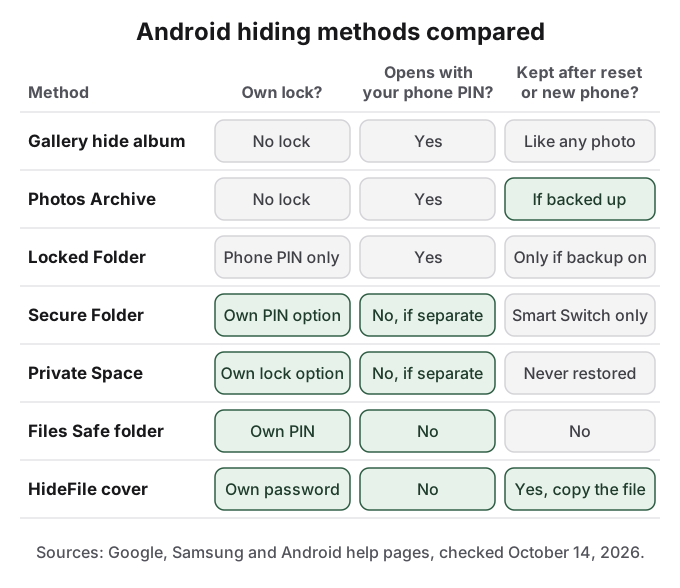
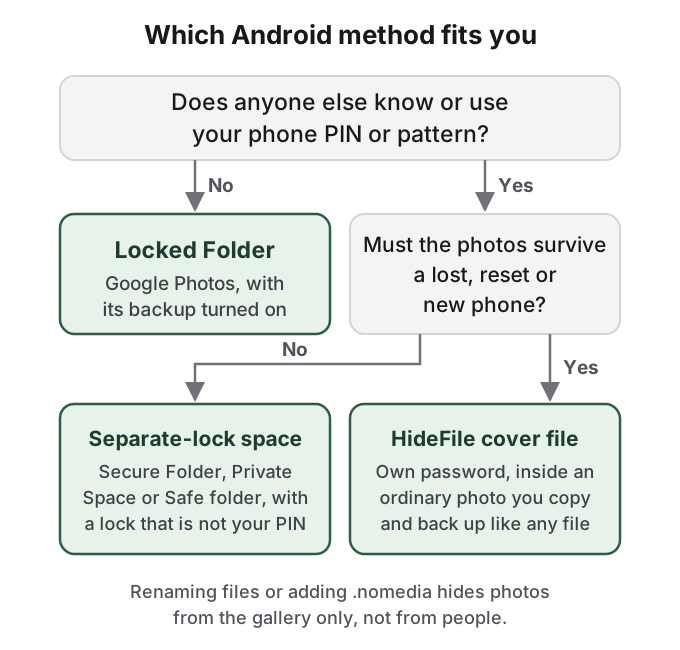
OnePlus, Oppo, Realme, Vivo and Motorola phones have their own private or hidden albums on many models, but we could not find a current official page for any of them, and menu names change between updates. Look in the Gallery's menu and under Settings for words like private, safe or hidden. Whatever you find, ask the two questions from the table at the top: does it have its own lock, and what happens on reset. The India-focused gallery guide covers these brands further.
Reset, repair and a new phone are where hidden photos get lost
Almost every failure story in the research for this guide is about losing photos, not about someone finding them. A Reddit user in r/googlephotos moved from Android to an iPhone, reset the old phone, and found the Locked Folder had never been backed up. The top answer: "With the factory reset it got permanently deleted, I'm afraid." Samsung owners lose Secure Folders to repairs and trade-ins.
In 2026, eight of the ten results in one r/googlephotos search for "locked folder" were from August and September, with titles like "Locked Folder disappeared" and "Moved a photo to Google Photos Locked Folder but it's not showing there it's still in my Gallery". Some OnePlus and Oppo owners report "Trouble moving to locked folder. try again later", and work around it at photos.google.com in Chrome.
The pattern holds across methods. Locked Folder survives only with its backup on. Secure Folder survives only through Smart Switch from a working phone. Private Space is never restored from a device backup. Safe folder does not survive at all. Before a reset, repair or trade-in, move hidden photos out or confirm the backup exists on another device, and do it while the screen still works.
The other trap is the copy you forgot. If Google Photos backed up a photo before you hid it in a gallery app or Secure Folder, that cloud copy is still in your Google Photos library. Check photos.google.com and delete it there, then empty the trash. Renaming tricks and .nomedia files have the same gap and a bigger one: they hide nothing from a file manager. How to hide photos without an app on Android and hidden folders on Android show exactly what those tricks hide and from whom.
How HideFile can help
Each built-in method fails in one of the same places. Locked Folder opens with the phone PIN. Secure Folder and Private Space have separate locks, but they can still be found (Secure Folder by name on the storage screen, Private Space through a computer, logs or other apps, by Google's own account) and they are tied to one phone. Safe folder cannot leave the phone at all. And all of them hold your photos in a place that only that phone, or that app, can read.
HideFile takes a different approach. It puts your private photos and files inside an ordinary photo, video or PDF, called a cover file. Open the cover in Gallery and you see a normal picture. Open it at hidefile.app with your password and you see your private files. The password is separate from your phone's PIN, and because the cover is just a file, you can copy it to a new phone, a USB drive or cloud storage like any other file. A reset does not take it with it if a copy lives somewhere else.
On Android, HideFile runs in Chrome. There is no Play Store app and nothing to install.
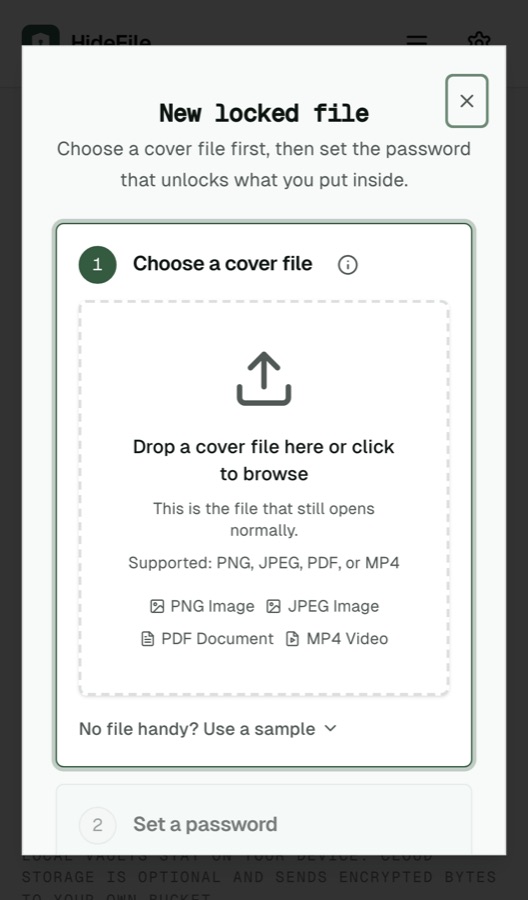
- Open hidefile.app in Chrome and tap Lock new files.
- Choose a cover: any ordinary photo, video or PDF.
- Set a password, then add the private photos and files.
- Tap Save. Chrome saves the cover file, usually to your Downloads folder.
- To open it later, go back to hidefile.app, tap Open a locked file, choose the cover and enter the password.
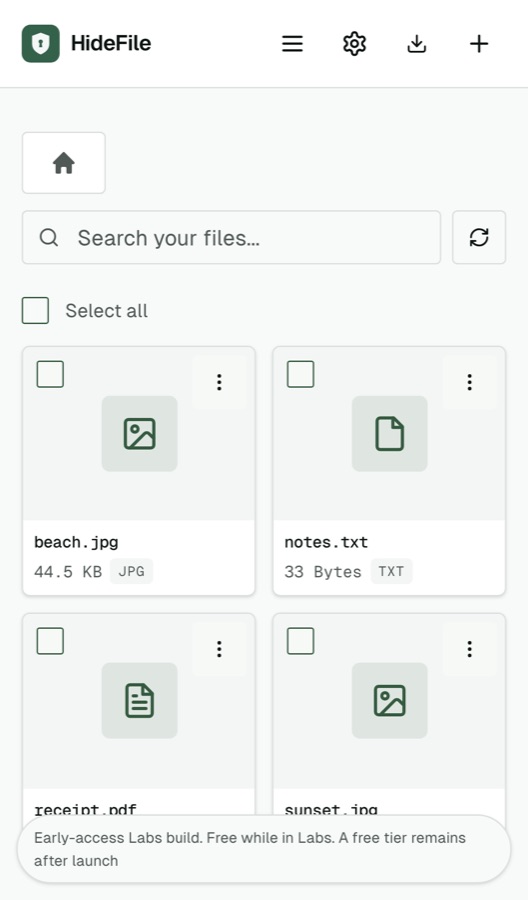
Your files are encrypted in the browser and are not uploaded to a HideFile server. Once the photos are inside the cover, delete the originals from Gallery, from Google Photos (on the phone and at photos.google.com) and from each app's trash. Messaging apps and social networks recompress photos and can strip the hidden part, so send or back up a cover as a document or file, not as a photo.
HideFile stops casual snooping, not forensic tools. A purpose-built tool can tell that data was added to a cover file; it cannot read the contents without the password, but it can tell they are there. Can hidden photos be detected covers what an examiner finds. There is no password recovery: forget it and the files are gone, for us as well as for you. While a cover is open on screen, anyone holding the phone sees what you see. For a border search, a trained examiner or legal pressure, HideFile is the wrong tool, and so is every method above.
For the deeper guides, see Samsung Secure Folder, Android Private Space and Google Photos Locked Folder. On iPhone, see how to hide photos on iPhone.
Sources
- Google Photos Help: Hide photos and videos with Locked Folder (checked October 14, 2026)
- Wayback Machine: Locked Folder help page without a backup section, August 29, 2023 and with it, August 30, 2023
- Google Photos Help: Archive photos
- Android Help: Use private space
- Android Open Source Project: Private space
- Files by Google Help: Use Safe folder
- Samsung US: Secure Folder troubleshooting and backup
- Samsung Latin America: What is Secure Folder and how to use it (last updated June 4, 2022)
- Xiaomi: Private album on Xiaomi 14T Pro and hiding items in Gallery
- Reddit r/googlephotos: Locked Folder lost after reset, photos lost mid-move, phone lost in the ocean, move to Locked Folder fails
- Reddit r/samsung: hiding photos in Gallery, Secure Folder to a new phone, Secure Folder lost after repair
- Reddit r/GooglePixel: Private Space use, Private Space vs Secure Folder