
Samsung Secure Folder is a locked, separate area on a Galaxy phone with its own apps, its own Gallery and its own storage. To set it up, open Settings > Security and privacy > More security settings > Secure Folder, sign in to your Samsung account and choose a lock. Photos, files and apps you move inside disappear from the normal side of the phone until you unlock the folder again.
It is the best built-in hiding place on a Samsung phone, and its weak point is not the lock. It is what happens to the contents when the phone changes. Samsung's US support page now says plainly that "Data backup is no longer available for Secure Folder", and on Android 16 with One UI 8 or higher you cannot restore old backups either. A factory reset, a failed repair or a switch to a non-Samsung phone can take everything inside with it. This guide covers the setup, then spends most of its time on that second half, because almost nothing that ranks for "secure folder" does.
Menu names below follow Samsung's US support page as checked on October 14, 2026. On older One UI versions the same screen sits under Settings > Biometrics and security > Secure Folder.
Secure Folder is a second phone profile, built on Samsung Knox
Secure Folder is part of Samsung Knox, Samsung's security platform, and Knox publishes its user guide. Samsung describes it as "a separate, secured storage area". In practice it behaves like a second, smaller phone running inside the first one: apps you add are separate copies with their own data, a second WhatsApp or banking app can run in there, and the Gallery inside only sees the photos that live inside.
Android's own work profiles and Private Space are built on the same idea of a separate profile, which is why Hacker News commenters describe Secure Folder as "an older approach to what Android provides via the standard Private Space feature since Android 15". Samsung's page does not frame it that way, and on Galaxy phones Secure Folder remains the tool Samsung documents.
People use it for far more than embarrassing photos. In one r/samsung thread asking what Secure Folder is for, with 175 comments, the answers run from duplicate messaging apps to banking apps and work separation. A Reddit user in r/androidapps listed "personal identification, screenshots of important mails, unfinished designs". The common thread is content you want out of view when the phone is unlocked and in someone else's hands.
The lock is separate from the phone's screen lock. That is the single biggest difference from Google Photos' Locked Folder, which reuses the screen lock, and it is why Secure Folder protects against a partner or child who knows your PIN. Samsung's own wording sets the scope: it keeps content private "even when the device is unlocked". It does not make the phone safe against someone who can force you to open it, or against software that has rooted the device.
How to set up Secure Folder on a Samsung phone
You need a Samsung account. Samsung's setup page says so directly: "To use Secure Folder, you must sign into your Samsung account."
- Open Settings, tap Security and privacy, then More security settings, then Secure Folder.
- Agree to the terms, then sign in with your Samsung account ID and password.
- Choose a lock type (pattern, PIN or password). Use a lock different from your phone's screen lock, or the separation is lost.
- Optionally add your fingerprint as a second way to open it.
- The Secure Folder screen opens and a Secure Folder icon is added to the Apps screen.
Two settings matter straight away. Auto lock Secure Folder decides when it locks again; pick the strictest option you can live with. You can also lock it by hand from the menu (three dots) with Lock and exit. And look at the lock settings for the option to reset the lock with your Samsung account, covered below, because it decides what happens if you forget the code.
Moving photos in and out, and the copy you forget about
- Open Secure Folder and tap Add files.
- Tap Images (or Videos, Audio, Documents), select the items and tap Done.
- Tap Move. Samsung: "The selected items will be deleted from the original folder and moved to Secure Folder." Tap Copy instead to leave the original where it was.
To bring a photo back out, open Gallery inside Secure Folder, select it, tap the three dots, then Move out of Secure Folder. It returns to the normal Gallery.
Moving a photo on the phone does not move the copy in the cloud. If Google Photos or OneDrive already backed up that photo from the normal Gallery, the cloud copy stays in your library and syncs back to every device you are signed in on. A Reddit user in r/samsung asked exactly this: "Is there a way to prevent Google photos from immediately backing them up." Check photos.google.com after a move and delete the cloud copy there if it exists. For new photos, the camera inside Secure Folder saves straight into the folder, which skips the normal Gallery entirely.
Hide the icon, but the storage screen still names it
The icon on the Apps screen is itself a sign that something is being kept private. You can remove it:
- Open Secure Folder and tap the three dots.
- Tap Settings, then switch off Show icon on Apps screen.
To get back in, swipe down the Quick panel and tap the Secure Folder tile, or go back through Settings. The Knox guide also lets you change the folder's name and icon, which is the answer to the common search "how do I rename the Secure Folder".
Hiding the icon is cosmetic. A commenter in r/GooglePixel comparing Secure Folder with Pixel's Private Space points out that the phone's storage screen lists "Secure folder" by name, even after the icon is renamed. The Quick panel tile and the Settings entry stay too. A curious person who knows Samsung phones can find that Secure Folder exists; what they cannot do without the code is open it.
Secure Folder has also had a real flaw. In a 290-point r/samsung thread, users showed that a work-profile media picker could read Secure Folder files while the folder was locked. Samsung called it a known issue, Android Authority covered it, and later comments report it patched. It is a reminder that a container's walls are software, and software has bugs.
Secure Folder backup: what Samsung says now, and when it changed
This is where most guides are out of date, and where Samsung's own pages disagree with each other. Read them by date.
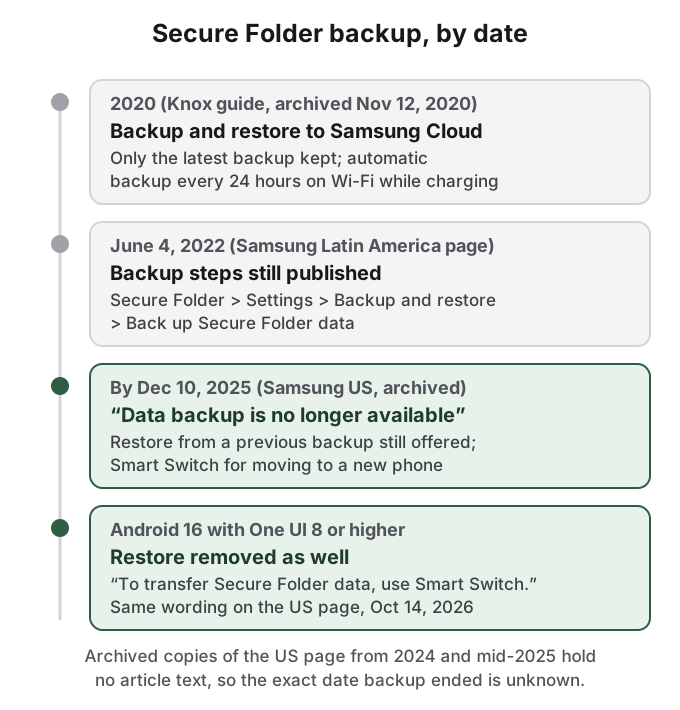
The Knox Secure Folder user guide, whose earliest archived copy is from November 12, 2020 and which is still online, describes Backup and restore to Samsung Cloud: you pick contacts, photos, videos, documents and even apps, Samsung keeps only the most recent backup, and an automatic backup runs every 24 hours on Wi-Fi while charging. Samsung's Latin America and Caribbean support page, which states a last update of June 4, 2022, still gives the steps: Secure Folder > Settings > Backup and restore > Back up Secure Folder data.
Samsung's US troubleshooting page, titled "Cannot backup Secure folder on Galaxy phone or tablet", says the opposite: "Data backup is no longer available for Secure Folder. However, you can restore data from a previous backup or transfer data from your old device to your new one using Smart Switch." It adds a second note: "Restore functionality is not available in the Secure Folder for devices running Android 16 with One UI 8 or higher. To transfer Secure Folder data, use Smart Switch."
The Internet Archive holds copies of that wording from December 10, 2025 and September 14, 2026, and it was unchanged on October 14, 2026. Earlier archived copies from 2024 and mid-2025 contain no article text, so the exact date backup ended cannot be pinned from the archive.
Put together: Samsung Cloud backup for Secure Folder existed, was withdrawn, and then restore of old backups was withdrawn on One UI 8. Any guide that tells you to "back up Secure Folder to Samsung Cloud" describes a feature your current phone does not have. Samsung's own advice on the same Latin America page is the one that still holds: "Before saving data in Secure Folder, make sure you back up a copy of the data in another secure location."
Reset with Samsung account fixes a forgotten code, not a wiped phone
Search for "samsung secure folder lost after reset" and Bing's AI answer leads with a setting called "Reset with Samsung account".
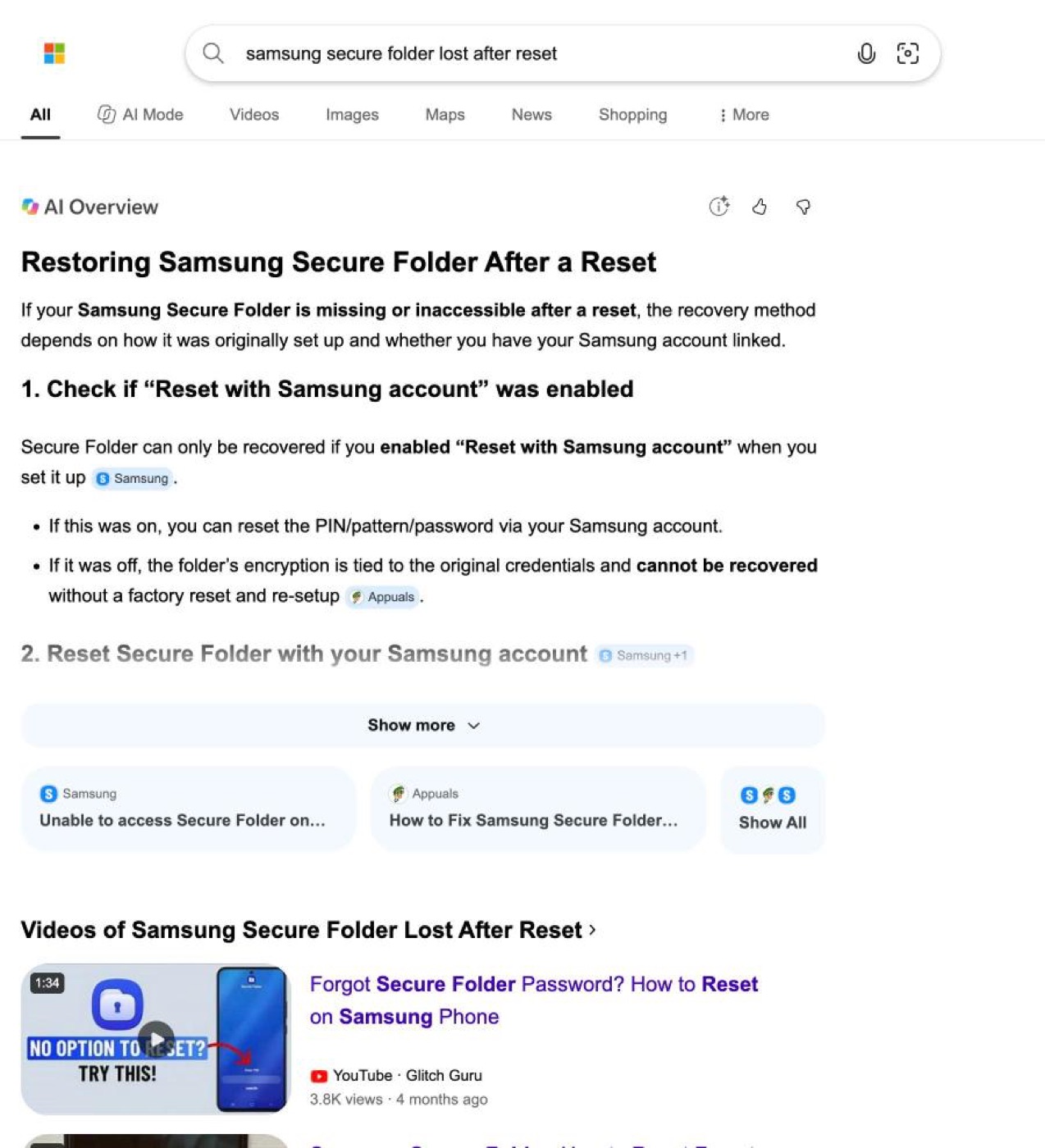
That answer blends two different problems. "Reset with Samsung account" resets the Secure Folder lock when you forget it. Samsung's steps, from its 2022 support page: open the Secure Folder lock screen, tap Forgot PIN, tap Reset, enter your Samsung account password, and choose a new code. The folder and its contents are still on the phone; you only get a new way in. Bing's summary, citing Samsung, says this works only if the option was turned on when you set the folder up; if it was off, the only way forward is to delete the folder and start again, losing its contents.
A factory reset is different. It erases the phone, Secure Folder included. Your Samsung account password does not bring the files back, because there is nothing left on the phone to unlock. The only recovery is a backup made before the reset, and as above, new Secure Folder backups are no longer possible and old ones cannot be restored on One UI 8. If you are reading this after a reset, the honest answer is that the files are almost certainly gone unless copies exist outside the folder.
What survives a factory reset, a repair and a new phone
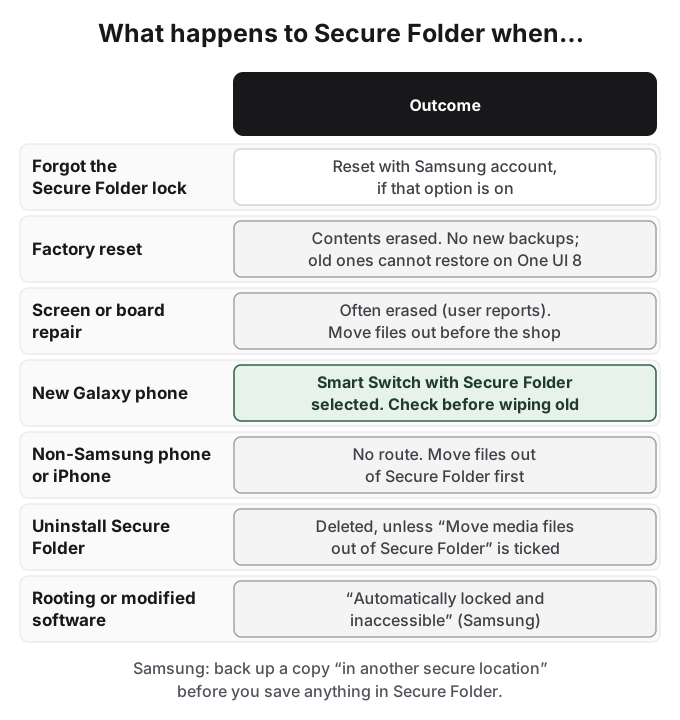
A new Galaxy phone is the supported case. Samsung's current method is Smart Switch, phone to phone:
- Put both phones within about 4 inches of each other, or connect them with a USB cable (the USB-C connector goes in the new phone).
- Open Smart Switch on both. On the new phone tap Receive on this phone; on the old phone tap Send from this phone.
- Choose Galaxy/Android, then Wireless (scan the QR code with the old phone) or Cable.
- Tap Allow on the old phone. On the new phone, tap the arrow next to Apps and select Secure Folder, or tap the arrow next to Secure Folder to pick specific content. Tap Done, Done, then Transfer.
- Open Secure Folder on the new phone and check that the data arrived.
That last step is the one to take seriously. Reddit shows Smart Switch does not behave the same for everyone. A Reddit user in r/samsung moving from a Note 9 to an S24 Ultra wrote that "the secure folder is only secure as long as you never get a new phone"; one reply said "Smart Switch won't do this for you", another that "It asks for an encryption password on the old device, that you must enter on the new device." In a 2026 thread about moving from an S21+ to an S26 Ultra, one user reported that Smart Switch captured the folder but "it didn't automatically transfer", while others said theirs did.
Do not wipe, trade in or sell the old phone until you have opened Secure Folder on the new one and seen your files.
A non-Samsung phone or an iPhone has no route. Secure Folder is a Samsung feature, and Samsung warns that its data "cannot be transferred to other devices via unapproved sharing methods, such as USB or Wi-Fi Direct." Move everything out of Secure Folder into the normal Gallery first, transfer it, then hide it again on the new phone.
A repair is the quiet failure. A commenter in the r/samsung bug thread wrote: "when my screen broke and got it repaired I lost all my secure folder". With the screen dead they could not unlock the phone to copy files out first. A repair that resets or replaces parts of the phone can wipe the folder the same way a factory reset does, so treat it as at risk. If the phone still works, move files out before it goes to a shop.
Uninstalling Secure Folder (Secure Folder > three dots > Settings > More settings > Uninstall) deletes the contents and the apps inside. Tick Move media files out of Secure Folder first to keep photos and videos. Rooting or flashing modified software triggers Samsung's own safeguard: Secure Folder is "automatically locked and inaccessible". Hacker News commenters report that unlocking the bootloader trips the Knox fuse and disables Secure Folder permanently; Samsung's page only says "locked and inaccessible".
Who can still see what is in Secure Folder
With the folder locked and the icon hidden, someone using your unlocked phone sees an ordinary Gallery. That covers the most common case people describe on Reddit: a friend or relative scrolling through photos.
It does not cover someone who knows or can demand your Secure Folder code; someone who looks at the storage screen, the Quick panel or Settings and asks what Secure Folder is; anything already uploaded to a cloud service before you moved it; or cloud accounts you sign into inside Secure Folder, which sync wherever else that account is used. It is also not protection against forensic examination, a border search or legal pressure. A container that announces its existence invites the request to open it. A Hacker News commenter in a border-search thread put the general rule bluntly: encryption "will be useless once they trick or intimidate you into giving up your passwords."
How HideFile can help
Secure Folder's lock is good. What it lacks is portability. Everything inside lives in one container on one Samsung phone, and the paths out of that phone are narrow: Smart Switch to another Galaxy, and nothing else, now that cloud backup is gone. A copy that exists in only one place is a copy you can lose, and the Reddit stories above are what that looks like.
HideFile takes the opposite approach. It puts your private photos and files inside an ordinary photo, video or PDF, called a cover file. Open the cover in Gallery and you see a normal picture. Open it at hidefile.app with your password and you see your private files.
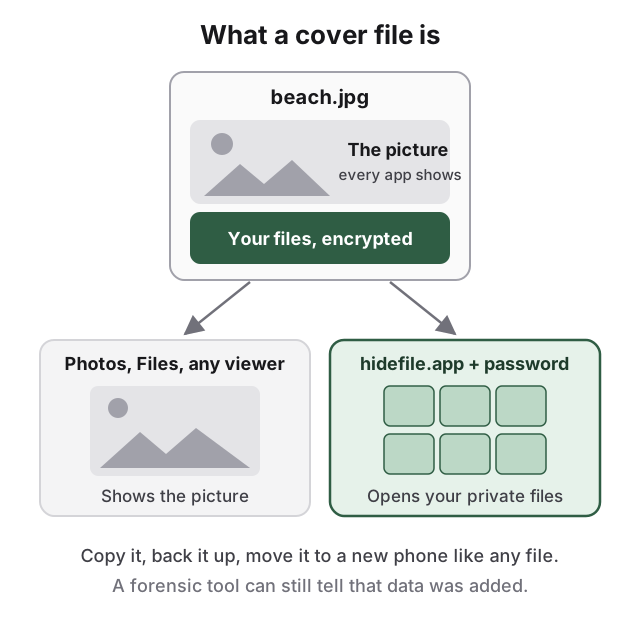
Because the cover is a normal file, it survives the events that wipe Secure Folder: copy it to Google Drive, a computer or a USB stick, and it moves to a new phone, a Pixel or an iPhone like any other file. There is no vault icon and no container name on the storage screen.
On Android, HideFile runs in Chrome. There is no Play Store app and nothing to install.
- Open hidefile.app in Chrome.
- Choose a cover: any ordinary photo, video or PDF.
- Add the private photos and files, and set a password.
- Save the cover file. It lands in Downloads.
- To open it later, go back to hidefile.app, pick the cover and enter the password.
Files are encrypted in the browser and are not uploaded to a HideFile server. Back the cover up as a file (Google Drive, a computer), not through a service that re-compresses photos, which can strip the hidden part. You can even keep the cover inside Secure Folder for two locks, as long as a copy also lives somewhere outside it.
HideFile stops casual snooping, not forensic tools. A purpose-built tool can tell data was added to the cover; it cannot read the contents without the password. There is no password recovery: forget it and nobody, including us, can open the files. For a trained examiner, a border search or legal pressure, it is the wrong tool, and so is Secure Folder.
For the other Android options, see how to hide photos on Android, hidden folders on Android, Android Private Space and Google Photos Locked Folder. Before trusting any vault app, read is a photo vault safe.
Sources
- Samsung US: Cannot backup Secure folder on Galaxy phone or tablet (checked October 14, 2026); archived December 10, 2025 and September 14, 2026
- Samsung Latin America: What is a secure folder and how to use it (last update June 4, 2022)
- Samsung Knox: Secure Folder user guide, Back up and Restore
- Reddit r/samsung: Is there a way to securely transfer files from the secure folder of my Note 9 to my new S24 Ultra?
- Reddit r/samsung: Private Album vs Secure Folder
- Reddit r/samsung: Secure Folder is not secure and files can be accessed
- Reddit r/samsung: What is the secure folder used for?
- Reddit r/samsung: How do you hide your pics in your gallery?
- Reddit r/androidapps: thread on what people keep hidden
- Reddit r/GooglePixel: Pixel Private Space vs. Samsung Secure Folder
- Hacker News: comment on Secure Folder and Private Space
- Hacker News: border search thread