
The iPhone Hidden album is a locked collection inside the Photos app. Photos you hide move there and disappear from your library, your other albums and the Photos widget. It opens with Face ID, Touch ID or your passcode, and with iCloud Photos on it exists on every device signed in to your Apple Account.
The lock accepts your passcode, and iCloud puts the same album on your iPad, your Mac and iCloud.com. Who can see your hidden photos therefore depends on who shares your passcode or your Apple Account.
Where is the Hidden album on iPhone
Open Photos, tap Collections, scroll down to Utilities, and tap Hidden. Then tap View Album and unlock it.
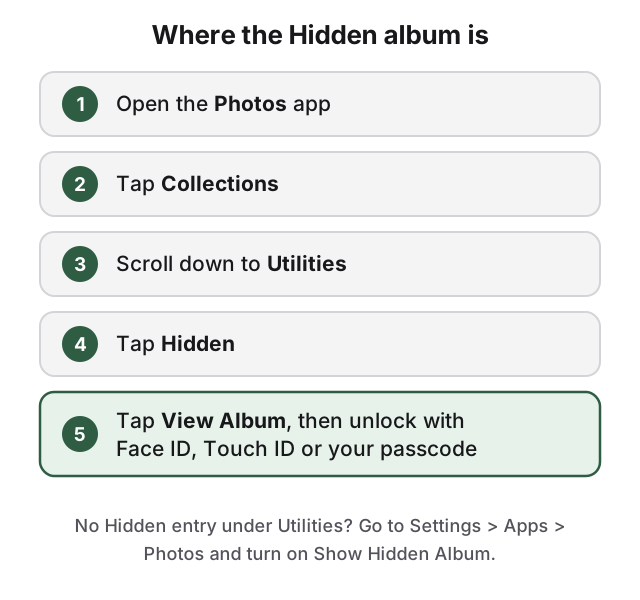
If Hidden is not listed under Utilities, the album has been turned off. Go to Settings > Apps > Photos and turn on Show Hidden Album. On iOS 17 and earlier, Photos settings are under Settings > Photos. The album is visible by default on iPhone. On a Mac it is off by default; in the Photos app on Mac, choose View > Show Hidden Photo Album.
Hiding a photo moves it out of view without deleting it
- Open the photo or video in Photos.
- Tap the More button (three dots).
- Tap Hide, then confirm.
To hide several at once, tap Select in your library, tap each item, tap the More button, then tap Hide. For every other way to hide photos on iPhone, see the full guide to hiding photos on iPhone.
The Face ID lock falls back to your device passcode
Since iOS 16, the Hidden and Recently Deleted collections are locked by default. Tapping View Album asks for Face ID or Touch ID, and falls back to your device passcode, so anyone who can unlock your iPhone can unlock the Hidden album. The setting is in Settings > Apps > Photos, named Use Face ID, Use Touch ID or Use Passcode depending on your iPhone. If you turn it off, both the Hidden and Recently Deleted albums open with no check at all.
The lock is an access check in Photos, not a separate password; the photos get the same iPhone and iCloud protections as the rest of your library. It also covers Recently Deleted, where photos you delete from the Hidden album stay for 30 days. It only applies inside Photos on that device; other devices have their own lock.
Turning off Show Hidden Album hides the album, not the photos
Locking the album does not hide that it exists. This does:
- Open Settings.
- Tap Apps, then Photos.
- Turn off Show Hidden Album.
With Show Hidden Album off, hidden photos are not visible anywhere in the Photos app. They are still stored on the phone and in iCloud. Anyone who knows the setting can turn it back on.
How to unhide photos on iPhone
- Open Photos and tap Collections.
- Tap Hidden under Utilities, tap View Album, and unlock.
- Tap the photo or video, tap the More button, then tap Unhide.
You can also touch and hold a thumbnail and tap Unhide. The photo goes back to your library and any albums it was in.
The Hidden album syncs to your other devices when iCloud Photos is on
When iCloud Photos is on, photos you hide on one device are hidden on your other devices too. An iPad has the same Hidden collection, opened with that iPad's Face ID, Touch ID or passcode. On a Mac, View > Show Hidden Photo Album brings the album back, and it unlocks with Touch ID or the Mac's login password. Photos at icloud.com has a Hidden item in the sidebar, which anyone signed in to your Apple Account in a browser can reach. Hiding also does nothing to copies already shared: a photo you sent in a message or added to a shared album is still on the other person's device.
An iCloud Shared Photo Library goes further. When you hide a photo that is in the Shared Library, it moves to the Hidden album for all participants, and any of them can view it or unhide it. Photos in your personal library are not affected. To keep a shared photo private, move it to your personal library first: open it, tap the More button, then tap Move to Personal Library. You can only move items you contributed yourself.
The lock stops a stranger, not someone who shares your passcode
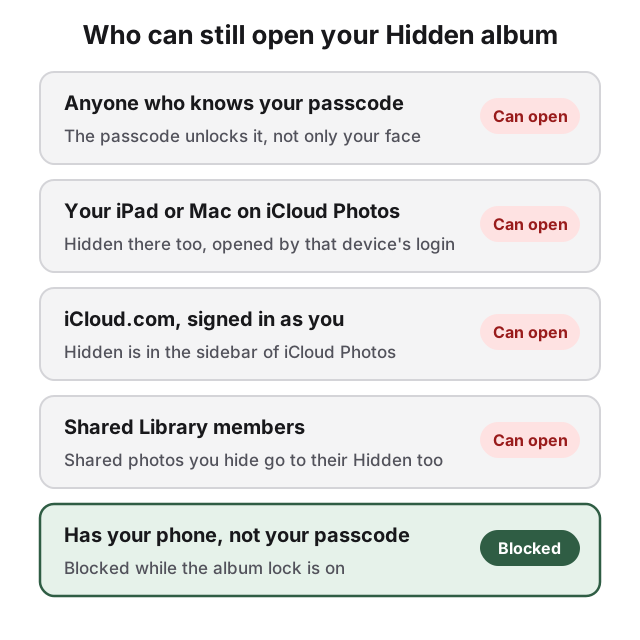
The Hidden album works against a friend or relative flicking through your camera roll, not against a partner or parent who knows your passcode, a family member who uses your iPad or Mac, or anyone with your Apple Account password. Against them, the built-in step further is a note locked with a custom Notes password: separate from your passcode, but photos only, no video or PDFs, and the title stays visible.
How HideFile can help
HideFile keeps your private photos, videos and files inside an ordinary photo, video or PDF, called a cover file. In Photos or Files it is a picture; at hidefile.app, in the browser, it opens with its own password. It is a normal file you can copy, back up and move to a new phone. A cover file stops casual snooping, not forensic tools. A purpose-built tool can see that data was added, even though it cannot read it.
There is no password recovery. If you need protection from a trained examiner, a border search or legal pressure, HideFile is the wrong tool, and so is the Hidden album. See can hidden photos be detected for details, and how to hide photos without an app on iPhone for more no-install options.
Sources
- Apple Support: Hide photos on iPhone, iPad, Mac or Apple Vision Pro with the Hidden album
- Apple Support: Delete or hide photos and videos on iPhone
- Apple Support: Delete photos on your iPhone or iPad
- Apple Support: Hide your photos and videos on iCloud.com
- Apple Support: Use iCloud Shared Photo Library on iPhone
- Apple Support: Personal Safety User Guide: hide photos and videos