
To hide an app on iPhone, touch and hold its icon on the Home Screen, tap Require Face ID, then tap Hide and Require Face ID, authenticate, and tap Hide App. The app leaves your Home Screen and moves to a locked Hidden folder at the bottom of App Library. This works on iOS 18 and later, for apps you downloaded from the App Store.
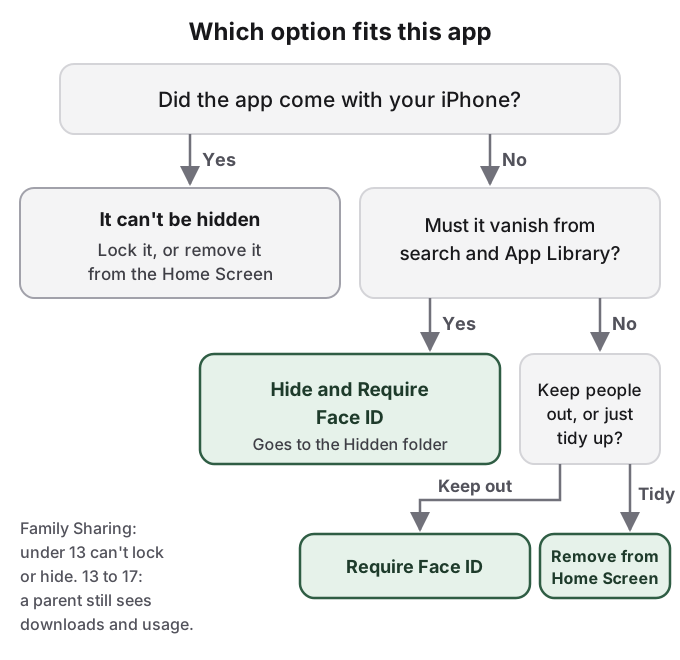
Whether that is enough depends on who picks up your phone. Hiding changes where an app's icon appears. It does not change what the phone records about the app. Apple's own iOS 18 guide says a hidden app's name still shows in Screen Time, in battery usage by app and in your App Store purchase history. A parent in Family Sharing still sees that a teenager downloaded it. The Hidden folder opens with your passcode, so anyone who knows that passcode can open it too. And the apps that came with your iPhone cannot be hidden at all, only locked.
This guide covers every built-in way to get an app out of sight, what each one actually changes, and how to find and unhide an app later. The steps follow Apple's current iPhone User Guide. iOS 17 and earlier have no lock or hide option; the older methods further down (removing the icon, hiding Home Screen pages, turning off search suggestions) still work there.
How to hide apps on iPhone with Hide and Require Face ID
Apple calls the feature "lock or hide an app". Hiding always includes a lock: you cannot hide an app without also requiring Face ID, Touch ID or your passcode to open it.
- Go to the Home Screen and find the app.
- Touch and hold the app until the Quick Actions menu opens.
- Tap Require Face ID (or Touch ID or Passcode).
- Tap Hide and Require Face ID, then authenticate.
- Tap Hide App.
According to Apple's current guide, "Hiding an app removes it from the Home Screen, App Library, and search results. A hidden app moves to a Hidden folder in App Library that requires authentication to open." Because a hidden app is also locked, its information stays out of CarPlay, notification previews, search, Siri suggestions and your call history.
Three limits apply before you start. Only apps you downloaded from the App Store can be hidden; "Apps that come installed can't be hidden." The app you set as your default web browser cannot be hidden, and neither can an alternative app marketplace in the EU. And the hidden status lives on one device: "it's only locked or hidden on that iPhone. The locked or hidden status of an app doesn't sync with iCloud." If the same app is on your iPad, it is in plain view there. Apple's pages do not say what happens to the hidden status when you set up a new iPhone from a backup, so check the Hidden folder after any restore.
Lock, hide and remove are three different promises
The Quick Actions menu offers a lighter option: lock the app without hiding it. The icon stays where it is, and opening the app asks for Face ID, Touch ID or your passcode.
- Touch and hold the app on the Home Screen until the Quick Actions menu opens.
- Tap Require Face ID (or Touch ID or Passcode).
- Tap Require Face ID again and authenticate.
A locked app relocks every time you quit it, so handing someone your unlocked phone does not hand them the app. The content stays out of the same places as a hidden app's: notification previews, search, Siri suggestions, CarPlay and call history. To undo it, touch and hold the icon, tap Don't Require Face ID and authenticate.
Locking suits the person who hands their phone over to show holiday photos and wants Messages, Notes or a banking app kept shut. Hiding suits the person who does not want anyone to know an app is installed. Removing an app from the Home Screen, the oldest trick, suits neither: it moves the icon without adding any lock.
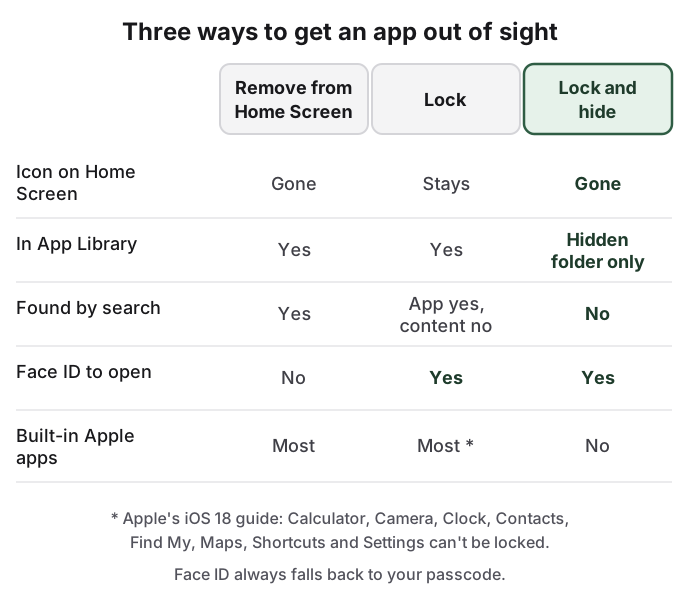
Built-in apps can be locked but not hidden
Photos, Messages, Notes, Mail and the other apps Apple ships cannot go into the Hidden folder. For them, the choice is a lock, removal from the Home Screen, or both.
Some built-in apps cannot even be locked. Apple's iOS 18 guide names them: "Calculator, Camera, Clock, Contacts, Find My, Maps, Shortcuts, and Settings." The current edition of the guide no longer prints that list and does not say whether it changed, so if Require Face ID is missing from an app's Quick Actions menu, that app is one of them.
The practical consequence is that the apps most people actually want private, such as Photos and Messages, can be guarded but never made to look absent. Locking Photos is worth doing anyway. It keeps the library closed when you hand the phone over, and it keeps photo content out of search and Siri suggestions.
Removing an app from the Home Screen moves it without locking it
Before iOS 18, the standard answer to "how do I hide an app" was to take it off the Home Screen. It still works on every version, including for built-in apps.
- Touch and hold the app on the Home Screen.
- Tap Remove App.
- Tap Remove from Home Screen. Do not tap Delete App, which removes the app and its data.
Apple is plain about what this does: the app "moves to App Library and can still be used from there." It stays in its App Library category, in the alphabetical list, and in search. App Library also has a Suggestions group at the top that "shows the apps you use most", so an app you open every day can end up more visible after removal, not less.
To stop new downloads from landing on the Home Screen at all, go to Settings > Home Screen & App Library and choose App Library Only. Tucking an app into a folder, the other old trick, only changes how many taps it takes to see it. Neither method needs a passcode to undo.
Hiding a Home Screen page hides a whole set of apps at once
If a group of apps lives together on one page, you can hide the page instead of each app.
- Touch and hold an empty area on the Home Screen.
- Tap the dots near the bottom of the screen. Thumbnails of your pages appear.
- Tap the circle under the page you want to hide. To unhide it later, repeat the steps and tap the circle again.
- Tap Done.
The apps on a hidden page are still installed and still listed in App Library and search. Anyone who knows the trick can show the page again in a few seconds, because it needs no authentication.
Search and Siri suggestions are where a moved app reappears
An app that is only removed from the Home Screen still shows up when someone swipes down and types its first letters, and Siri may suggest it on the Home Screen or in search before anyone types at all. Hidden apps are already excluded: Apple's Spotlight article says a hidden app "doesn't show up in search results until you unhide it."
For apps you have removed or cannot hide, turn the suggestions off per app:
- Open Settings and tap Search.
- Scroll down and tap the app.
- Turn off Show App in Search, Show Content in Search, Show on Home Screen, Suggest App and Suggest Notifications.
On older versions of iOS the same switches sit under Siri & Search in Settings. Apple notes that turning off the two search switches also stops Siri from drawing personal context from that app. Like page hiding, these switches carry no lock: anyone holding your unlocked phone can turn them back on.
How to find hidden apps on iPhone and unhide them
There are two ways to see what is hidden. For a list, go to Settings > Apps > Hidden Apps and authenticate. To open one, use App Library:
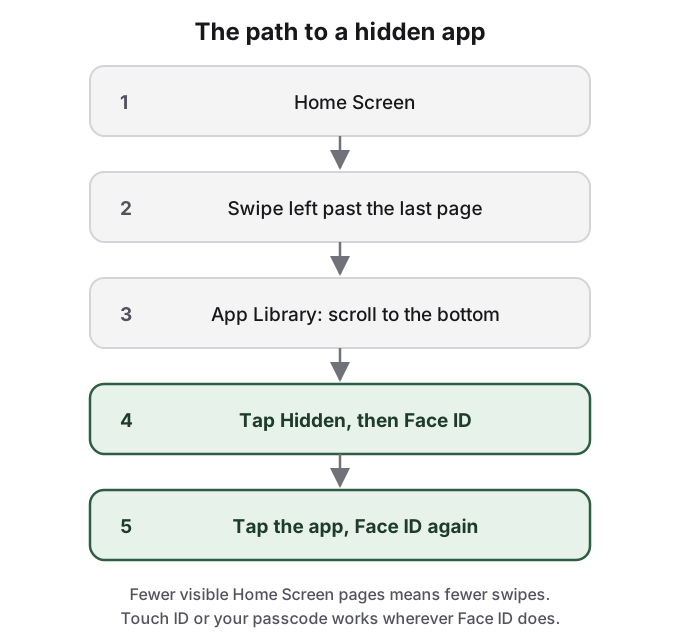
To stop hiding an app:
- Swipe left past all your Home Screen pages to reach App Library.
- Tap the Hidden folder at the bottom and authenticate.
- Touch and hold the app, tap Don't Require Face ID, and authenticate.
- The app reappears near the top of App Library. Touch and hold it until it moves to the Home Screen if you want it there.
Apps that were only removed from the Home Screen are easier: type the name into the search field at the top of App Library. If an app is not in App Library at all, it was deleted, and you can reinstall it from the App Store under your account, Apps & Purchase History, then Your Apps. Apps on a hidden Home Screen page come back when you tick the page again.
The same paths work for anyone holding your phone. The Hidden folder and the Hidden Apps list both accept your passcode as well as Face ID, so they keep out a person who does not know it and nobody who does. A Reddit user in r/ios made the same point about Apple's Hidden photos album: it is "Protected from your mate if they borrow your phone, sure", but not from someone who knows or shares your PIN.
A hidden app can still show up in Screen Time, Battery and App Store history
Apple's iOS 18 edition of the guide states it directly: "When you hide an app, its name is still visible in some places, such as Screen Time, Battery Usage By App (in Settings), and your App Store purchase history." The current edition no longer repeats that sentence. Apple does not say whether the behaviour changed or the sentence was dropped, so assume it still applies.
Each of those places is a list that anyone with your unlocked phone can scroll. Screen Time ranks apps by how long you used them. The battery screen in Settings lists apps by how much power they drew. Neither asks for Face ID. A hidden app you use for an hour a day will sit near the top of both.
The App Store list can be trimmed, but not cleared. In the App Store, tap your photo, tap Apps & Purchase History, then Your Apps, swipe left on an app and tap Hide. Apple's support article spells out what that does and does not do: the app "will no longer appear in your list of purchases in the App Store", but it "will still appear in your complete purchase history in Settings." It does not remove the app from your iPhone or any other device signed in to your Apple Account, and family members can no longer download it from your shared purchases.
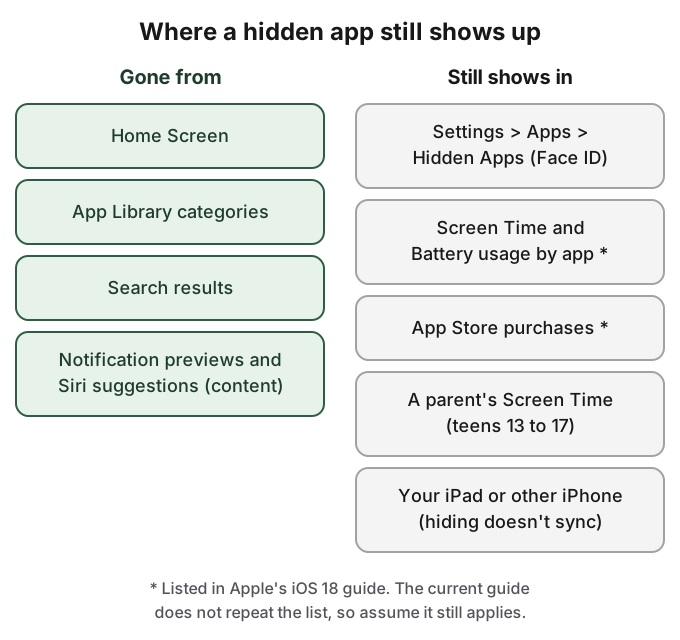
Family Sharing decides whether a teenager can hide an app at all
Apple's rule is the same in every edition of the guide: "Children under 13 in a Family Sharing group can't lock or hide apps. Anyone aged 13 to 17 in a Family Sharing group can lock or hide an app, but a parent or guardian in the family group can see that the app was downloaded and how much time it's used, and restrict access to it using Screen Time." The ages vary by country or region.
So for a teenager in a family group, hiding an app keeps it out of sight of a sibling or a friend borrowing the phone, and not out of sight of the parent who manages Screen Time. The parent does not need to open the app or know the passcode; the download and the time spent show up on their own device. A parent who wants to restrict an app can do so from there as well, whether it is hidden or not.
Hiding an app does not hide what the app saved
The Hidden folder hides an app's icon and locks the app. It does nothing to photos you saved from that app into your camera roll, documents it exported to the Files app, or data it stored in iCloud. Apple notes that even deleting an app leaves its iCloud data in place. A photo saved from a hidden messaging app sits in Photos with everything else, and anyone scrolling your library sees it.
If the thing you want private is pictures rather than the app, hide the pictures themselves. How to hide photos on iPhone covers the Hidden album, the Show Hidden Album switch and locked notes. The iPhone Hidden album guide covers where hidden photos still surface, including iCloud and Shared Library.
How HideFile can help
Hiding an app hides the door, not the room. People usually hide a photo vault, a messaging app or a document app because of the files inside it, and those files are still tied to an app that shows up in usage lists, in purchase history and in a parent's Screen Time.
HideFile skips the app. It puts private photos, videos and documents inside an ordinary photo, video or PDF, called a cover file. Open the cover in Photos or Files and you see a normal picture. Open it at hidefile.app with your password and you see your private files. HideFile runs in Safari, so there is no icon to hide and no App Store purchase to trim. It is a website, not an App Store app. Screen Time can record websites visited in Safari, so a parent who manages Screen Time can see the visit, the same as any other site.
- Open hidefile.app in Safari.
- Choose a cover: any ordinary photo, video or PDF.
- Add the private files and set a password. It is separate from your iPhone passcode.
- Save the cover file to the Files app.
- To open it later, go back to hidefile.app, pick the cover and enter the password.
Files are encrypted in the browser and are not uploaded to a HideFile server. The cover is a normal file, so you can copy it, back it up and move it to a new phone. Your browser history will still show that you visited the site.
The limits are real. HideFile stops casual snooping, not forensic tools: a purpose-built tool can tell that data was added to a cover, though it cannot read the contents without the password. There is no password recovery. Apps that re-save or compress images, such as many messaging apps, can strip the hidden part, so move covers as files. While a cover is open on screen, anyone holding the phone sees what you see. For a border search, a trained examiner or legal pressure, it is the wrong tool, and so is the Hidden folder.
Sources
- Apple Support: Customize your iPhone Home Screen (hide and show Home Screen pages)
- Apple Support: Lock or hide an app on iPhone (current edition, checked October 14, 2026)
- Apple Support: Lock or hide an app on iPhone, iOS 18 edition
- Apple Support: Remove or delete apps from iPhone
- Apple Support: Find and use your apps in App Library on iPhone
- Apple Support: Use Spotlight Search on your iPhone, iPad, or iPod touch
- Apple Support: Hide and unhide apps in your App Store purchase list
- Reddit, r/ios: Is this app safe? Any experience with iLockBox