
You do not need a vault app to hide photos on iPhone. Photos, Notes and Settings already include three ways to do it, and nothing has to be downloaded from the App Store.
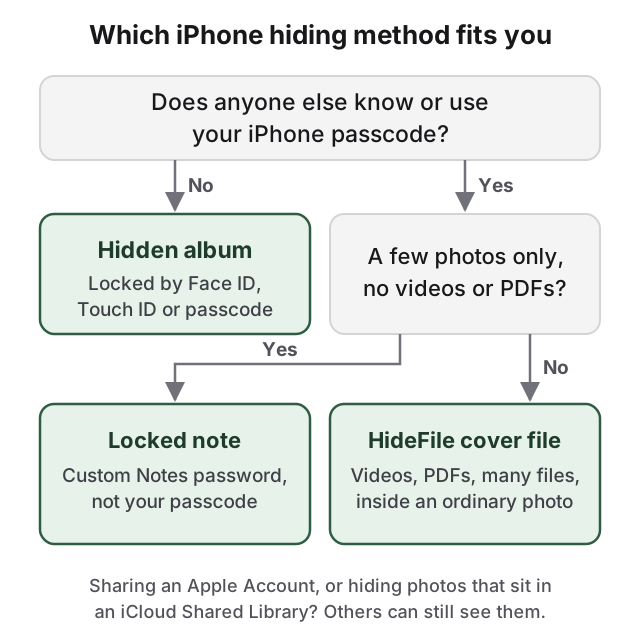
Pick by who might open your phone. The Hidden album and the Photos app lock both open with your device passcode, so they work when nobody else knows it. A locked note has its own password but holds photos only. A browser-based option at the end covers what they cannot.
The Hidden album is the quickest way to hide photos without an app
- Open the photo in Photos, or tap Select and choose several.
- Tap the More button (three dots).
- Tap Hide.
Hidden photos leave your library, other albums and the Photos widget, and move to the Hidden collection under Utilities. It is locked by default and opens with Face ID, Touch ID or your passcode. To remove the Hidden entry from Photos altogether, go to Settings > Apps > Photos and turn off Show Hidden Album. The iPhone Hidden album guide explains how the lock works and who can still see it.
A locked note adds a password your passcode cannot open
Photos cannot lock a single photo. Notes can, behind a password that is different from your phone's passcode.
- Go to Settings > Apps > Notes > Password and tap Use Custom Password.
- In Notes, create a note, tap the Attachments button and add the photos.
- Tap the Note Actions button, then tap Lock.
- Delete the originals from Photos, then from Recently Deleted.
The note title stays visible in the list, so give it a dull one. Notes with video, PDF or file attachments cannot be locked. If you forget a custom Notes password, Apple cannot recover those notes.
Locking the Photos app puts a check in front of the whole library
Touch and hold the Photos icon on the Home Screen and tap Require Face ID (or Touch ID or Passcode). Anyone handed your unlocked phone then has to authenticate before Photos opens. Built-in apps like Photos can be locked but not hidden, and the lock accepts your device passcode.
Hidden photos still follow iCloud, Shared Library and Memories
With iCloud Photos on, hidden photos are hidden on all your devices and are still in the Hidden album on your iPad, Mac and at iCloud.com. If you hide a photo that is in an iCloud Shared Library, it moves to every participant's Hidden album, so move it to your personal library first. Photos you have not hidden can resurface in Memories and featured photos; in Photos, tap Collections, tap your account, and turn off Show Featured Content. Deleted originals stay in Recently Deleted for 30 days, so empty them if you moved photos into a note or a cover file.
How HideFile can help
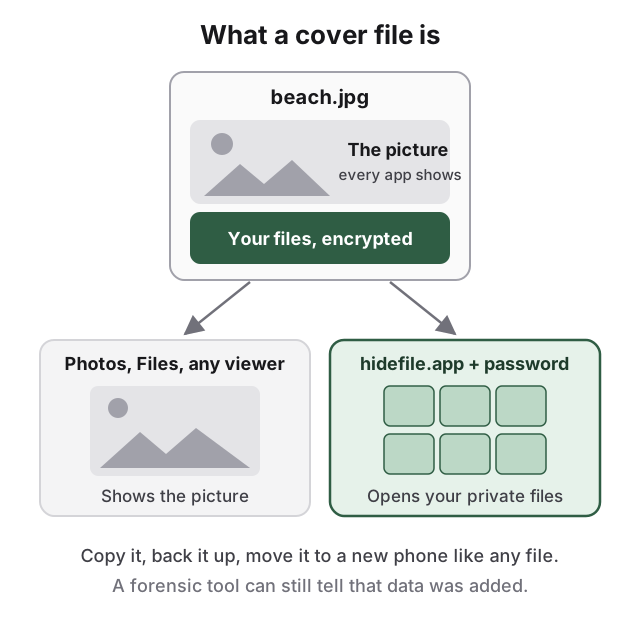
The built-in methods keep your photos in Apple's apps, unlocked by your passcode or synced to your other devices. If that is the problem, HideFile runs in Safari with nothing to install. It puts your private photos, videos and files inside an ordinary photo, video or PDF, called a cover file.
- Open hidefile.app in Safari.
- Choose a cover photo, video or PDF.
- Add your private photos and files, and set a password.
- Save the locked cover to the Files app, and delete the originals from Photos and Recently Deleted.
Files are encrypted in the browser and are not uploaded to a HideFile server. After the site has loaded once, it can keep working offline, depending on your browser's storage support. The cover has its own password, separate from your passcode, and it is a normal file you can copy, back up and move to a new phone. Keep it in Files rather than re-sharing it through messaging apps, which can compress images and strip the hidden part.
A HideFile cover stops casual snooping, not forensic tools: a purpose-built tool can see that data was added, though not read it, and a forgotten password cannot be recovered. If you need protection from a trained examiner, a border search or legal pressure, HideFile is the wrong tool, and so is the Hidden album. See can hidden photos be detected.
For every method in more depth, read the complete guide to hiding photos on iPhone. On a Mac, see how to hide photos on Mac.
Sources
- Apple Support: Delete or hide photos and videos on iPhone
- Apple Support: Lock your notes on iPhone
- Apple Support: Lock or hide an app on iPhone
- Apple Support: Hide your photos and videos on iCloud.com